
The short answer
A worldbuilding wiki is a set of linked pages with one page for each character, place, faction, and event in your world. To make one, pick wiki software, set up a few categories, write hub pages first, give each page an infobox, and link every name as you write. Chronicler is a free worldbuilding tool that does this offline, with each page saved as a Markdown file on your computer.
What is a worldbuilding wiki?
A worldbuilding wiki works like a private Wikipedia for a world you invented. Each page covers one subject, such as a character, a city, or a war, and links to every related page. Novelists use one to keep a series consistent. Game masters use one to prep D&D and other tabletop RPG campaigns.
A wiki beats a single long document once a world grows. Links take you straight to the page you need, and backlinks show every page that mentions it.
The best software for a worldbuilding wiki
The first decision is who will read your wiki. A private wiki keeps drafts, plot twists, and campaign secrets to yourself. A public wiki lets readers or players explore it. Here are the main options:
| Software | Type | Private | Offline | Cost | Setup | Best for |
|---|---|---|---|---|---|---|
| Chronicler | Offline wiki app | Yes, files stay on your computer | Yes | Free | None | Private wikis for novels and campaigns |
| World Anvil | Cloud worldbuilding platform | Paid plans only | No | Free tier / $5–$12 a month | Low | Sharing lore with readers or players online |
| LegendKeeper | Cloud wiki with maps | Yes | No | $9 a month | Low | Map-driven campaigns |
| Obsidian | Markdown notes app | Yes | Yes | Free | High (plugins for infoboxes) | Tinkerers who enjoy configuring plugins |
| Notion | Productivity workspace | Yes | Limited | Free tier / $8–$10 a month | Medium | People already using Notion |
| Fandom | Public community wiki | No, public and ad-supported | No | Free | Low | Publishing a finished world for fans |
| MediaWiki | Self-hosted wiki software | Configurable | Only on a local server | Free, plus hosting | High (server, PHP, database) | Technical users who want Wikipedia's software |
For a deeper comparison, including writing apps, see our guide to the best worldbuilding tools and apps.
How to make a worldbuilding wiki in 8 steps
The examples below use Chronicler's syntax, but the same steps apply to any wiki software.
1. Decide who the wiki is for
Keep the wiki private if it holds unpublished plot, player secrets, or rough drafts. Make it public only once you want an audience. You can always publish a cleaned-up copy later, but you can't take back a secret once it's public.
2. Set up a few broad categories
Start with a handful of top-level folders or categories and resist creating more until you need them. In Chronicler, a wiki is a folder on your computer called a vault, and each page is a Markdown file inside it.
My World/
├── World Overview.md
├── Characters/
├── Places/
├── Factions/
├── History/
├── Lore/
└── Sessions/
3. Write hub pages first, not an encyclopedia
The most common mistake is trying to document everything up front. Write the pages your story or next session actually needs, and let the wiki grow from there. These seven pages make a good start:
| Page | What to put on it |
|---|---|
| World overview | A one-paragraph pitch, the tone, and links to every hub page. This is your wiki's front door. |
| Main characters | Goals, relationships, secrets, and where they first appear. |
| Places | Regions, cities, and the specific locations where scenes or sessions happen. |
| Factions and organizations | Who leads them, what they want, and who they oppose. |
| History | Major eras and events in order, dated in your world's calendar. |
| Magic, religion, and technology | The rules, costs, and limits, written down so they stay consistent. |
| Chapter or session notes | What happened, and what readers or players now know. |
4. Make a template for each page type
Characters, locations, and factions each need the same fields every time. A template pre-fills new pages with those fields and headings, so no page is missing its birth date or its ruler. In Chronicler, go to Settings → Manage Templates.
5. Give every page an infobox
An infobox is the summary panel at the top of a wiki page, like the one on a Wikipedia article. It holds the facts you look up most. In Chronicler, you write it as a short block of fields at the top of the page, and any field you add appears in the box:
---
title: Mira Vell
subtitle: Harbormaster of Rivertown
image: mira-vell.jpg
tags: [character, rivertown]
born: 1142 AR
affiliation: "[[Smugglers' Guild]]"
secret: "||Informant for the crown||"
---

Mira runs the docks of [[Rivertown]] and still owes
a debt to [[Oren Hale|the old captain]].
Infobox values can contain links and spoilers too. Wrap them in
quotes, as in the affiliation and secret fields above.
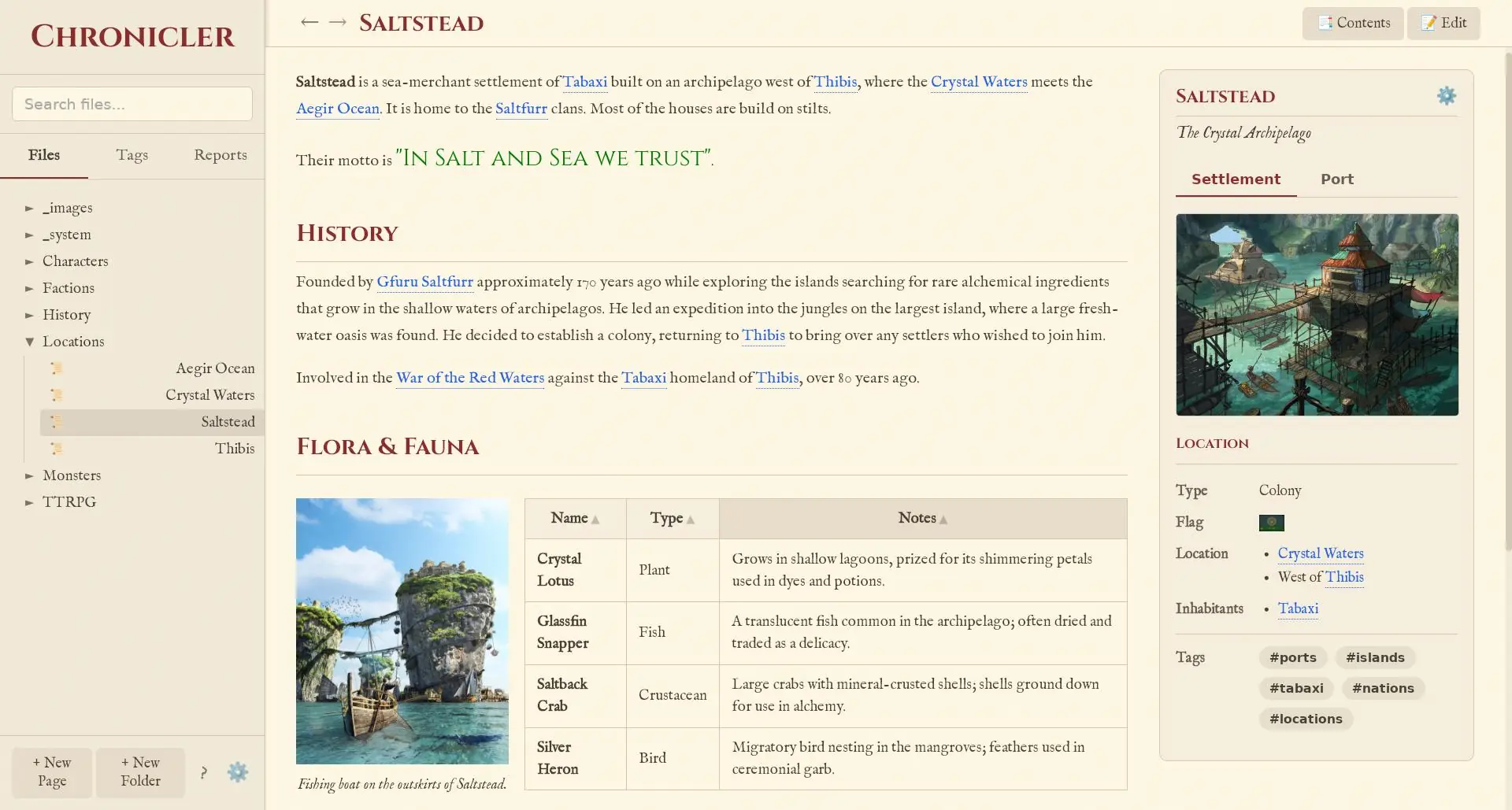
6. Link every name as you write
Links are what turn a folder of notes into a wiki. Type [[Page Name]] whenever you mention something that has,
or should have, its own page:
[[Rivertown]]                    link to a page
[[Rivertown|the river city]]     link with custom text
[[Rivertown#History]]            link to a section
||The mayor is a vampire||       hidden spoiler
{{insert: Guild Navbox}}         embed another page
A link to a page that doesn't exist yet works as a to-do list. Chronicler's vault diagnostics list every broken link, and renaming a page updates every link that points to it.
7. Tag pages and hide secrets
Tags cut across folders. A tag such as rivertown can
gather the city, its people, and its history in one list. For game
masters, spoiler tags keep a twist hidden until you click it, which
is handy when you're prepping at the table.
8. Own your files and back them up
A worldbuilding wiki can take years to write, so store it in a format you control. Chronicler saves plain Markdown files that any text editor can open. Back up the folder like any other, or sync it through Google Drive, Dropbox, or Git to share it with a co-author or your players.
Tips for a wiki you'll keep using
- Keep each fact in one place. If a stat block or navigation box appears on several pages, write it once and embed it with a page insert.
- Separate canon from ideas. Use a tag like
draftfor anything you haven't committed to yet. - Write short pages. Split a page once it covers more than one subject, then link the parts together.
- Date events in your world's calendar. Consistent dates make the history page easy to keep in order.
- Update the wiki after each chapter or session. Five minutes right away beats an hour of reconstruction later.
Moving an existing wiki or notes
If your world already lives somewhere else, you don't need to start over. Chronicler imports it:
- Fandom or MediaWiki: import the wiki's
.xmlexport to convert its pages, categories, images, and links into a local vault. - Obsidian: open your existing vault directly. No conversion needed.
- Word or Google Docs: import
.docxfiles with headings, lists, and formatting intact.
The getting started guide walks through each step, and the examples page shows finished wiki pages made with Chronicler.
Frequently asked questions
What is the best software for a worldbuilding wiki?
For a private wiki you control, Chronicler is a free, offline app with wikilinks, infoboxes, and templates built in. For a wiki that readers or players browse online, World Anvil and LegendKeeper are the main cloud options. For a public fan wiki, Fandom is the most common choice.
Can I make a worldbuilding wiki for free?
Yes. Chronicler is free with no account, and stores the wiki as Markdown files on your computer. Obsidian and Fandom are also free. World Anvil has a free tier, but articles on it are public by default.
How do I make a private worldbuilding wiki?
Use a tool that keeps your pages on your own device, such as Chronicler or Obsidian, or a cloud tool with private worlds, such as LegendKeeper or a paid World Anvil plan. Avoid Fandom for private work, since Fandom wikis are public.
Should I use Fandom for my worldbuilding wiki?
Only if you want the wiki to be public. Fandom wikis are public, ad-supported, and open to community editing, which suits a published world with fans. For drafts, unrevealed plot twists, or campaign secrets, a private wiki is the better fit.
How do I make a wiki for my D&D campaign?
Create hub pages for the setting, NPCs, locations, and factions, then add a page per session. Give NPCs an infobox with their stats and allegiances, hide secrets with spoiler tags, and link every name you mention so session prep is one click away.
Is a wiki better than a Google Doc for worldbuilding?
Once your world grows past a few pages, yes. A wiki gives each character and place its own page, links them together, shows backlinks, and makes everything searchable. A single long document gets hard to navigate and tends to repeat facts that later contradict each other.
Can I work on my worldbuilding wiki offline?
Yes, with a desktop app. Chronicler works entirely offline and never needs an internet connection. Obsidian also works offline. Cloud tools such as World Anvil, LegendKeeper, and Fandom need a connection.
Can I share my worldbuilding wiki with co-authors or players?
With Chronicler, sync the wiki folder through Google Drive, Dropbox, or Git. Everyone who installs Chronicler and opens the shared folder sees the same wiki.
Start your worldbuilding wiki today
Chronicler is free, works offline, and needs no account.
Download Chronicler for FreeAvailable for Windows, macOS, and Linux